How to Run a Permission Report for a Team or SharePoint Site
Computing Services
Technote #640
Title: How to Run a Permission Report for a Team or SharePoint SiteApplies to: UofR Employees
Section: File & Deployment
Owner: Manager, File & Deployment Services
Last updated: March 11, 2026
Introduction
Do you need to know exactly who has access for each individual item on your SharePoint Site?
There is a built-in permission report in SharePoint which breaks down every permission for every item, from the site itself and its pages and lists to the individual files in your Documents library. It also indicates the type of permission, such as through a sharing link or direct, and the type of user, being external to the site or not.
Note: If you need a quick way to remove permissions for a specific user, this process is documented in Technote #641
Prerequisite:
Be an Owner of the Site. An “Owner” of a Team is also a “Site Owner” and “Site Admin” of the corresponding SharePoint site. An explicit “Site Owner”, however, is an owner of the site but not a connected Team.
If you do not see the required permissions, please contact the Service Desk to request appropriate access or further assistance.
Instructions:
- Visit the site’s home page.
- Open the site Settings (gear icon) on the topmost SharePoint toolbar and click on “Site contents”.
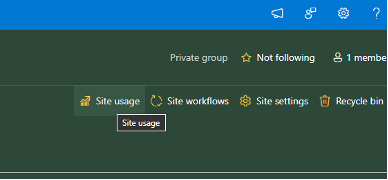
- Next, click ”Site usage” above the contents table on the right side.
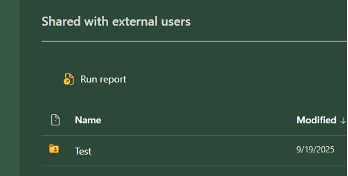
4. Scroll to the bottom of the page to “Shared with external users”. Click on “Run report”. You will be prompted to choose a save location for the report within the Site’s Documents.
Note: The report will not be able to be generated if the site is at its OneDrive Quota and has no available space. If this happens, please delete or temporarily export some files so that there is room for the report.
5. Click “Save”
6. The report can take minute(s) to complete depending on the size of the site. You will receive an email with a subject of "Your sharing report for <Team Name> is ready" when it is complete.
7. Next, go to the location in the site Documents where the file was saved. This location can also be accessed within the Team itself at the same location under the “Shared” tab.
8. Open the report, which is an Excel file that starts with the team name.
The Report:
This report describes the permissions of every item (file, folder, page, list) in the site.
If an item is not listed in the report, it has inherited its parent directory’s permissions by default and no unique permissions were granted for it. If there is a difference, all permissions for the item will be listed, even if some overlap with the parent directory.
Note: ”Shared Documents” in the report refers to the Site’s “Documents” which are also accessible under the Team’s “Shared” tab.
The “[Team-name] [Owners/Visitors/Members]” User Name, such as _EWG_ Test Team Owners, refers to the membership of the team “[EWG] Test Team” and correlates to the access each level has. These members are all bundled into a Group, and all members of the group are given the same access to the item. These groups have default access to everything on a Team Site unless an exception is made.
In most cases, specific individuals will be given access to an item through a Sharing Link, unless they are explicitly granted site-wide Owner/Member/Visitor permissions.
Sharing links will be indicated in a row, and the users who can access the shared link are listed in the following rows. In the following image from a sample report, the access to the “Shared Documents/Test” folder are listed. There is a link which is shared only with John Doe. Some links may be accessible to anyone in the University organization. This will be indicated in the “Link Type” column.

If you go to the item’s location in your site or team and click ”…” -> “Manage Access”, you will be able to view all the permissions and sharing links for that item and manage them there.
Access Levels
Full Control is the default level for Site Owners. Users with this access can manage the site-level settings and manage sharing and permissions for the item.
Edit is the default level for Site Members. They can edit the item’s content but are not able to share it or manage existing access.
Read is the default level for Site Visitors. They can view an item’s contents but are unable to modify them or their access.
Contribute is the level of access given to individuals who are accessing the item through a sharing link. It is similar to Edit, but is unable to edit the site structure, specifically lists (the directory if it is a file).
Conclusion:
This technote describes the procedure to generate a permission report for your SharePoint site and how to read the data.