
MyCreds Troubleshooting Guide
How to Request a Confirmation of Enrolment
Accessing Your University of Regina Documents Through MyCreds
The University of Regina delivers official documents, including transcripts, Confirmation of Enrolment letters, and parchments, through MyCreds.
Important: The University of Regina sends your documents to your University of Regina education provider account in MyCreds. If you already use a personal MyCreds account, you must link your University of Regina account to your personal account to access your documents there.
Find the issue that matches your situation below. Expand the relevant section to follow the instructions.
Step 1: Check your document request status
- Sign in to University of Regina Self-Service.
- Select the Student tab and open the document request page.
- Locate your document request and check its status.
- Available to MyCreds Status: Your document should be available through MyCreds. Continue to Step 2 below.
- Any other status: Wait until the status changes to Available to MyCreds before troubleshooting access to your document.
Step 2: Check your email
Once your request status is Available to MyCreds:
- Check your inbox and junk or spam folder for an email from MyCreds.
- Email should have been sent to the email address you provided while submitting the request.
Step 3: Follow the appropriate account setup instructions
If your document status is Available to MyCreds, but you still have not received an email, expand the relevant section below or check the final section for contact details and the information to include in your message. You can also try to follow the instructions in the section “03: I can't find my document in my personal MyCreds account”.
- Open the email from MyCreds and click Register to begin setting up your account.
- If MyCreds displays an error indicating that your email address is already registered, sign in to your existing account at MyCreds Sign In. Then, follow the instructions in the section “03: I can't find my document in my personal MyCreds account” on this page to link your accounts.
Once your accounts are linked, sign in to MyCreds and check whether your document is available.
If you sign in to MyCreds using your personal email address or other available sign in methods but cannot find your University of Regina documents, your University of Regina education provider account may not be linked to your personal account. Follow the steps below to link your accounts and access your documents. You do not need to create another MyCreds account.
- Sign in to your personal MyCreds account.
- Open your profile or account menu.
- Select Account Settings.

- Navigate to the Education Provider Accounts section.
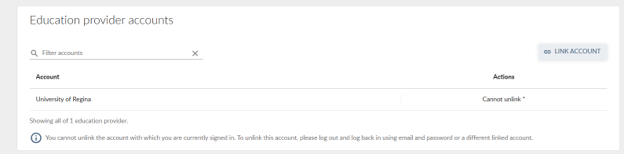 If you already have University of Regina as linked account and still cannot access the document than contact the Registrar’s office using the contact details in the final section.
- Select Link Account.
- Choose University of Regina.
- Select Continue and sign in using your University of Regina username and password.
- If MyCreds asks you to verify an old email address that you can no longer access, follow section: 04 I can't link my University of Regina account because my old email address is incorrect or I can no longer access it” on this page.
- Follow any remaining prompts to complete the linking process.
After linking your accounts, return to your MyCreds account and check whether your University of Regina documents are available.
If you have linked your accounts but still cannot find your document, see Section 5: “I can sign in to MyCreds, but my document is missing”.
If your University of Regina account is already linked to another email address, MyCreds may send a verification code to that previously linked address.
If you can no longer have accessed the old email address or MyCreds send email to wrong email address, try the following steps:
- Sign out of MyCreds if you are currently signed in.
- Open the MyCreds sign-in page.
- Select Sign In with your Education Provider.
- Choose University of Regina and select Continue.
- Sign in using your University of Regina username and password. If you have forgotten your credentials or need to reset your password, visit the U of R Accounts, Logins and Passwords page or contact the IS Service Desk for assistance.
- You should be able to see all UofR documents here, but we recommend following below steps so that all documents are also available in your MyCreds personal account.
- Open Account Settings and navigate to the Email accounts section.

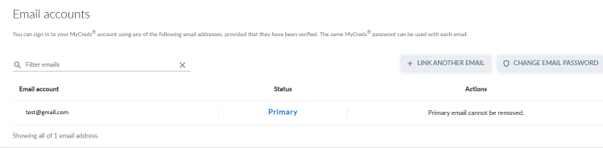 Select Link another email and complete the verification process.
- Once the new email address is linked, set it as your primary email address and remove the other email address.
If you can sign in to MyCreds but cannot find your University of Regina document, follow these steps.
Step 1: Check whether your University of Regina account is linked
- Sign in to your MyCreds account.
- Select Account Settings from profile menu and navigate to the Education Provider Accounts section.

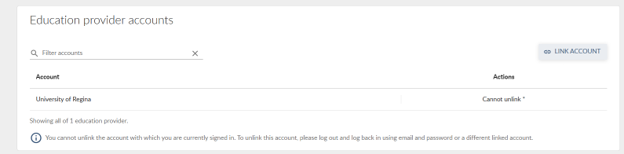
Step 2: Confirm the account is linked
- University of Regina appears in the list: Your University of Regina education provider account appears to be linked. Continue to Step 3.
- University of Regina does not appear in the list: Follow Section 04 - “I can't find my document in my personal MyCreds account”
Step 3: Sign in again and check your documents
- Sign out of MyCreds.
- Sign back in after confirming that your accounts are linked.
- Check your available documents again.
Step 4: Check your document request status
If your document is still missing:
- Return to University of Regina Self-Service.
- Locate your document request and confirm that its status is Available to MyCreds.
- If the status is not Available to MyCreds, wait until the status changes.
If the status is Available to MyCreds and your accounts are linked, contact the Registrar’s Office for assistance. See the final section for contact details and the information to include in your message.
If you have followed the relevant troubleshooting steps and still cannot access your document, contact the Registrar’s Office.
Phone: 306-337-2483
Email: MyCreds@uregina.ca
To help us investigate your issue, please include the following information in your email:
- Student ID: Your University of Regina student ID.
- MyCreds email address: The email address you used to sign in to MyCreds.
- Description of the issue: A brief explanation of the problem you are experiencing and the steps you have already tried.
- Screenshot of Education Provider Accounts: Please provide a screenshot of the Education Provider Accounts section under Account Settings, showing whether University of Regina is linked to your account. This is not required if you have not received the notification email.
- Screenshot of any error message: If you receive an error message, please include a screenshot of the error, if applicable.
Providing these details will help us investigate your issue and assist you more efficiently.